
The best wireless drawing tablets give artists, students, teachers, and creators more freedom to work without being tethered to a USB cable. The right model balances wireless reliability, pen accuracy, active-area size, shortcut controls, and compatibility with your preferred software.
We compared compact, affordable, and professional options from Wacom, XPPen, HUION, and GAOMON to help you choose a tablet that fits your workspace, workflow, and budget.
Best 10 Wireless Drawing Tablets Picks for 2026
Best Compact Wireless Pick

- Bluetooth or USB-A connectivity
- Battery-free 4,096-level pen
- Compact 6 x 3.7-inch active area
Best For: Students and portable everyday creativity
Best Large Wireless-Ready Alternative

- Large 10 x 6.25-inch workspace
- 16,384 pressure levels with tilt
- Eight customizable shortcut keys
Best For: Beginners wanting a spacious drawing surface
Best Wireless Workspace Upgrade

- Bluetooth and USB-A connectivity
- 8.5 x 5.31-inch active area
- Battery-free 4,096-level pen
Best For: Creators wanting more room without a display
Best Shortcut-Rich Value

- 10 x 6.25-inch working area
- 8,192 pressure levels with tilt
- 28 programmable controls
Best For: Artists who prefer extensive shortcut customization
Best for Easy Setup
- Bluetooth 5.0 plus wired USB connectivity
- Battery-free pen with 16,384 pressure levels
- Eight customizable shortcut keys
Best For: Portable drawing, teaching, and everyday creative work
Best Dial-Controlled Option
GAOMON WH851 Wireless Drawing Tablet

- 8-by-5-inch active drawing area
- Dial plus eight customizable keys
- Up to 18 hours of battery life
Best For: Artists and designers who want tactile workflow controls
Best Professional Upgrade

- Pro Pen 3 with tilt support and 8,192 pressure levels
- Ten ExpressKeys and two mechanical dials
- USB or Bluetooth connection options
Best For: Professional animation, design, photo, video, and 3D workflows
Best Wireless Drawing Tablet for Shortcut Keys

- Bluetooth 5.0 wireless connectivity
- Battery-free stylus with 8192 pressure levels
- Eight customizable shortcut keys
Best For: Artists and students who want a spacious, cross-platform tablet
Best Compact Wireless Drawing Tablet for Beginners

- Lightweight, portable small-format design
- Bluetooth and USB-A connectivity
- Battery-free pen and included training access
Best For: Beginners, students, and creators who value portability
Best Wireless Drawing Tablet for Mobile Mapping
- Bluetooth 5.0 with up to 13 hours of use
- Adjustable Android active-area mapping
- Eight shortcut keys and 60-degree tilt support
Best For: Android creators and portable digital-art users
Best Compact Wireless Pick – Wacom Intuos Small
The Wacom Intuos Small is a compact option for shoppers comparing wireless drawing tablets. Its Bluetooth connection, battery-free pen, and compatibility with Mac, Windows, and Chromebook make it practical for digital art, photo editing, online education, and note-taking.
Best For: Students, teachers, beginners, and creators who want a portable wireless tablet with a small footprint.
Pros:
- Bluetooth and USB-A connectivity provide flexible wired or wireless use.
- Battery-free EMR pen offers 4,096 pressure levels and a pen-on-paper feel.
- Four ExpressKeys provide convenient shortcut access.
- Includes access to creative software and Wacom online training after registration.
Cons:
- The 6 x 3.7-inch active area is smaller than the workspaces on the other tablets listed here.
- It uses USB-A for wired connection, which may require an adapter with newer devices.
Choose this model when portability and dependable wireless operation matter more than having a large drawing surface. It is a straightforward fit for everyday creative and educational tasks.
Best Large Wireless-Ready Alternative – XPPen Deco 01 V3
The XPPen Deco 01 V3 is a large drawing tablet for users who want more room for sketching, writing, and design work. Although its supplied connectivity is USB-C rather than Bluetooth, its expansive 10 x 6.25-inch area, battery-free stylus, and broad device compatibility make it a strong wireless drawing tablets alternative for compatible setups that prioritize workspace.
Best For: Beginners and developing artists who want a roomy tablet with customizable controls and Android support.
Pros:
- 16,384 pressure levels and up to 60 degrees of tilt support enable detailed line and shading control.
- Eight customizable shortcut keys support both right- and left-handed users.
- Works with Windows, macOS, Android, ChromeOS, and Linux.
- Includes a stand, replacement nibs, glove, protective film, and connection adapters.
Cons:
- The supplied notes describe USB-C connectivity, not Bluetooth wireless operation.
- Android users need the XPPen Tools app for accurate screen mapping.
Pick the Deco 01 V3 if a generous active area and modern stylus specifications are more important than built-in Bluetooth. Its included accessories and beginner-focused controls make setup approachable.
Best Wireless Workspace Upgrade – Wacom Intuos Medium
The Wacom Intuos Medium gives wireless drawing tablets shoppers a larger Bluetooth-enabled workspace than the Small model. Its battery-free pen, 4,096 pressure levels, and compatibility with Mac and PC suit creators who want more room for drawing, editing, and design without moving to a display tablet.
Best For: Artists, students, and teachers who want Bluetooth convenience with an 8.5 x 5.31-inch active area.
Pros:
- Bluetooth and USB-A connectivity support flexible desk or portable use.
- Medium active area provides more drawing room than the Small Intuos.
- Battery-free Wacom Pen 4K includes 4,096 pressure levels.
- Four ExpressKeys support customizable workflow shortcuts.
Cons:
- It is larger and heavier than the Small Intuos, at 14.56 ounces.
- Wired connectivity uses USB-A, which may need an adapter with some newer computers.
This is the better Wacom choice when the Small model feels restrictive but you still want a familiar, compact pen tablet. Its Bluetooth support adds flexibility for creative work away from a fixed desk.
Best Shortcut-Rich Value – HUION Inspiroy H1060P
The HUION Inspiroy H1060P is a spacious wired tablet for artists who value extensive shortcut customization. It is not Bluetooth-enabled, but its 10 x 6.25-inch work area, battery-free tilt-supporting pen, and compatibility with Windows, macOS, Android, and Linux make it a capable alternative when comparing wireless drawing tablets.
Best For: Artists and hobbyists who want a large workspace and many programmable controls.
Pros:
- Large 10 x 6.25-inch working area supports comfortable drawing.
- Battery-free stylus offers 8,192 pressure levels and 60-degree tilt support.
- Twelve programmable press keys plus 16 soft keys provide extensive customization.
- Symmetrical design supports right- and left-handed use.
Cons:
- The supplied connectivity is USB, so it does not provide wireless operation.
- iPhone and iPad are not supported according to the supplied notes.
- Ubuntu use requires the Xorg display server rather than Wayland.
Consider the H1060P if shortcut access and drawing space take priority over Bluetooth. It offers a feature-rich control layout for users comfortable with a wired setup.
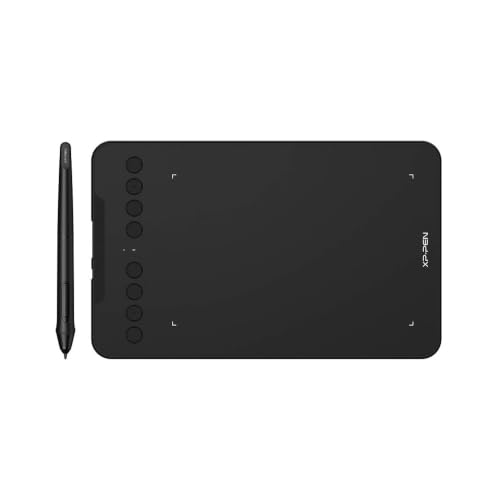
Best for Easy Setup – XP-Pen Deco mini7W
The XP-Pen Deco mini7W is a compact option for shoppers seeking wireless drawing tablets that work across computers, Android devices, and Chrome or Linux systems. Bluetooth 5.0, a battery-free pen, and eight customizable keys make it practical for drawing, teaching, editing, and remote work.
Best For: Students, teachers, and creators who want a lightweight, versatile tablet with broad device compatibility.
Pros:
- Supports Bluetooth 5.0 and wired USB connections.
- Battery-free pen provides 16,384 pressure levels and 60-degree tilt support.
- Eight customizable shortcut keys help streamline common tasks.
- Works with Windows, Mac, Android, Chrome OS, and Linux.
Cons:
- The 7-inch active area is more compact than larger drawing tablets.
- It does not include a built-in display for drawing directly on the image.
Choose this model when portability and compatibility matter more than a large workspace. Its wireless flexibility and shortcut keys make it a well-rounded compact entry in the wireless drawing tablets category.
Best Dial-Controlled Option – GAOMON WH851 Wireless Drawing Tablet
The GAOMON WH851 combines Bluetooth 5.0 wireless operation with an 8-by-5-inch active area, making it a strong choice among wireless drawing tablets for creators who want more workspace and tactile controls. Its dial, eight programmable keys, and long battery life support extended drawing and editing sessions.
Best For: Artists, students, and designers who prefer a larger active area with a physical dial for zooming, scrolling, and brush adjustments.
Pros:
- Offers wired USB Type-C and Bluetooth 5.0 connections.
- Battery supports up to 18 hours of operation.
- Battery-free pen has 16,384 pressure levels and tilt detection.
- Combines a customizable dial with eight programmable shortcut keys.
Cons:
- Wireless use requires charging the built-in battery.
- Compatibility details list Windows, Android, and Mac, but operating-system support varies by connection method.
The WH851 is especially appealing if a dial-based workflow feels more natural than keyboard shortcuts alone. Its 8-by-5-inch surface and wireless capability provide a useful balance between working room and desk flexibility.
Best Professional Upgrade – Wacom Intuos Pro Medium
The Wacom Intuos Pro Medium is a premium choice for professionals comparing wireless drawing tablets for animation, design, photography, video, and 3D work. It pairs Bluetooth connectivity with Wacom’s Pro Pen 3, ten ExpressKeys, and two mechanical dials for a highly customizable workflow.
Best For: Professional artists, animators, designers, and editors who need advanced controls and a durable, refined pen tablet.
Pros:
- Pro Pen 3 offers 8,192 pressure levels, tilt support, and lag-free tracking.
- Ten customizable ExpressKeys and two mechanical dials provide extensive shortcut control.
- Supports both USB and Bluetooth connections.
- Includes an adjustable pen grip, balance weight, and button-layout options.
Cons:
- It has fewer listed pressure levels than the XP-Pen and GAOMON alternatives.
- Compatibility is limited to Mac and PC systems in the supplied specifications.
- Its professional feature set may be more than casual users need.
This is the strongest fit for buyers who prioritize customization, pen ergonomics, and professional-grade construction. The medium format offers a sizable active area while retaining a relatively compact footprint for desk or mobile use.
Best Wireless Drawing Tablet for Shortcut Keys – XP-Pen Deco MW
The XP-Pen Deco MW is a versatile option for shoppers comparing wireless drawing tablets. Its Bluetooth 5.0 connection, battery-free stylus, generous 8 x 5-inch active area, and broad operating-system support suit digital art, online teaching, and general creative work.
Best For: Artists and students who want a larger drawing area, customizable controls, and compatibility across desktop and mobile platforms.
Pros:
- Bluetooth 5.0 enables cable-free drawing and the tablet can also connect through the included accessories.
- Battery-free X3 stylus provides 8192 levels of pressure sensitivity and 60-degree tilt support.
- Eight customizable shortcut keys can speed up common editing and drawing tasks.
- Works with Windows, macOS, Android, ChromeOS, Linux, and major creative applications.
Cons:
- The tablet does not include a built-in display, so you draw while viewing a separate screen.
- The larger 8 x 5-inch format may be less convenient than a compact tablet for frequent travel.
Choose the Deco MW if workspace flexibility and shortcut access matter more than having the smallest possible tablet. It is especially appealing for users who move between operating systems or creative software.
Best Compact Wireless Drawing Tablet for Beginners – Wacom Intuos S
The Wacom Intuos Small is a compact choice among wireless drawing tablets, combining Bluetooth connectivity with a battery-free pressure-sensitive pen. Its portable size and compatibility with Windows, macOS, and ChromeOS make it practical for students, teachers, and creators working in different locations.
Best For: Beginners, students, and mobile users who prefer a lightweight tablet with straightforward wireless or USB connectivity.
Pros:
- Bluetooth allows wireless use, while the included USB-A cable provides a wired option.
- Battery-free Wacom EMR pen is designed to provide a pen-on-paper feel.
- Compact 5.98 x 3.74-inch active area and 8.8-ounce weight make it easy to carry.
- Includes access to creative software and Wacom online training after registration.
Cons:
- Its 4096 pressure levels are lower than those of the XP-Pen models in this roundup.
- The small active area may feel restrictive for users who prefer broad arm movements.
- The supplied operating-system details do not list Linux or Android compatibility.
The Intuos S is a sensible entry point for portable digital drawing and everyday editing. Its small footprint is convenient, though artists who need more workspace or wider compatibility may prefer a larger model.
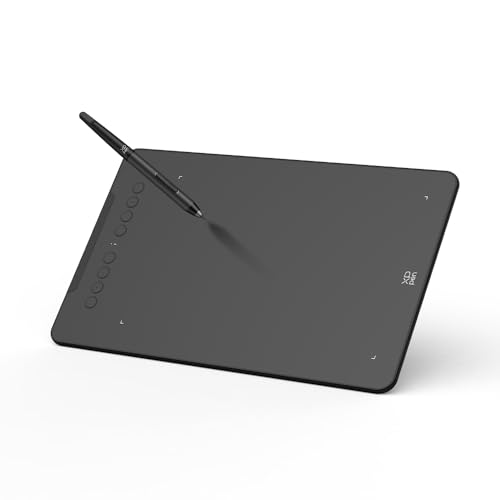
Best Wireless Drawing Tablet for Mobile Mapping – XP-Pen Deco mini7W V2
The XP-Pen Deco mini7W V2 stands out among wireless drawing tablets for mobile-focused features. Bluetooth 5.0, a battery-free stylus, adjustable active-area mapping, and compatibility with Android, ChromeOS, macOS, Windows, and Linux make it a flexible option for drawing, note-taking, and remote work.
Best For: Creators who draw on Android devices or want a compact tablet with high pressure sensitivity and customizable workflow controls.
Pros:
- Bluetooth 5.0 supports wireless use, with up to 13 hours of continuous work on a charge.
- P05D stylus offers 16384 pressure levels and 60-degree tilt support.
- Mobile mapping adjustment helps match the tablet’s active area to an Android screen ratio.
- Eight customizable shortcut keys and an L-shaped USB-C cable support efficient workflows.
Cons:
- The compact 7 x 4.37-inch format provides less drawing space than the Deco MW.
- iOS support is limited to ibis Paint according to the supplied notes.
- The product details list both 16384 and 8192 pressure levels, so shoppers should verify the current specification.
The Deco mini7W V2 is a strong fit when wireless portability and Android screen matching are priorities. Its compact size keeps it travel-friendly, while the shortcut keys and tilt support add useful control for creative work.
How We Picked These Wireless Drawing Tablets
We focused on the features that most affect everyday drawing and editing: wireless connectivity, active drawing area, pressure sensitivity, pen technology, shortcut controls, compatibility, portability, and overall value. The selection includes compact tablets for travel and teaching, larger entry-level models for illustration and photo editing, and advanced options for serious creative work.
Battery-free styluses are especially useful because they reduce charging interruptions. We also considered whether a tablet’s size and control layout suit different workflows, from occasional note-taking to detailed digital painting.
Quick Comparison
| Best For | What to Look For |
|---|---|
| Travel and small desks | Compact active area, Bluetooth, lightweight design |
| Illustration and photo editing | Medium or large work area, accurate pressure response |
| Shortcut-heavy workflows | Customizable ExpressKeys, hot keys, or a dial |
| Professional creation | Premium pen performance, durable build, refined drivers |
| Online teaching and notes | Reliable wireless connection, simple setup, comfortable pen |
Key Buying Factors for Wireless Drawing Tablets
Active Area and Portability
A larger active area provides more room for broad strokes and detailed control, but it also takes up more desk space. Small tablets are easier to carry and can work well with laptops, while medium models generally offer a more natural drawing experience.
Wireless Connection and Battery Life
Bluetooth models reduce cable clutter, but check whether wireless operation requires a charged tablet or receiver. Consider charging time, connection stability, and whether the tablet can continue working while connected by cable.
Pen Sensitivity and Feel
Higher pressure-sensitivity ratings can provide finer input recognition, but pen calibration and driver quality matter just as much. A battery-free stylus is convenient, while premium pens may offer improved tracking, tilt support, or a more comfortable grip.
Shortcut Controls and Compatibility
ExpressKeys, hot keys, and dials can speed up zooming, undoing, brush changes, and navigation. Confirm support for your operating system and creative applications before buying, particularly if you use ChromeOS, Linux, or specialized software.
Who Should Buy Which Wireless Drawing Tablets?
Choose a compact wireless tablet if you travel frequently, use a laptop, teach online, or have limited desk space. Choose a medium tablet if you want a comfortable balance between precision and portability for illustration, editing, or animation. Choose a model with many programmable keys if you rely on keyboard shortcuts and want faster access to tools. Choose a professional Wacom Intuos Pro-class option if you prioritize refined pen control, long-term workflow comfort, and advanced creative features over the lowest price.
Before ordering, verify the included accessories, software offers, operating-system support, and current wireless requirements. Those details can make a meaningful difference in setup time and everyday usability.